Declutter Your Phone in One Weekend: 12 Simple Steps
Declutter your phone and you will feel like you bought a new device without spending a dime. I finally tackled my 200-app chaos last month and discovered photos from 2019 I had forgotten existed. A messy phone wastes your time, drains your battery, and quietly stresses you out every time you unlock it. This weekend plan breaks the job into twelve manageable steps.
1. Delete Apps You Never Open
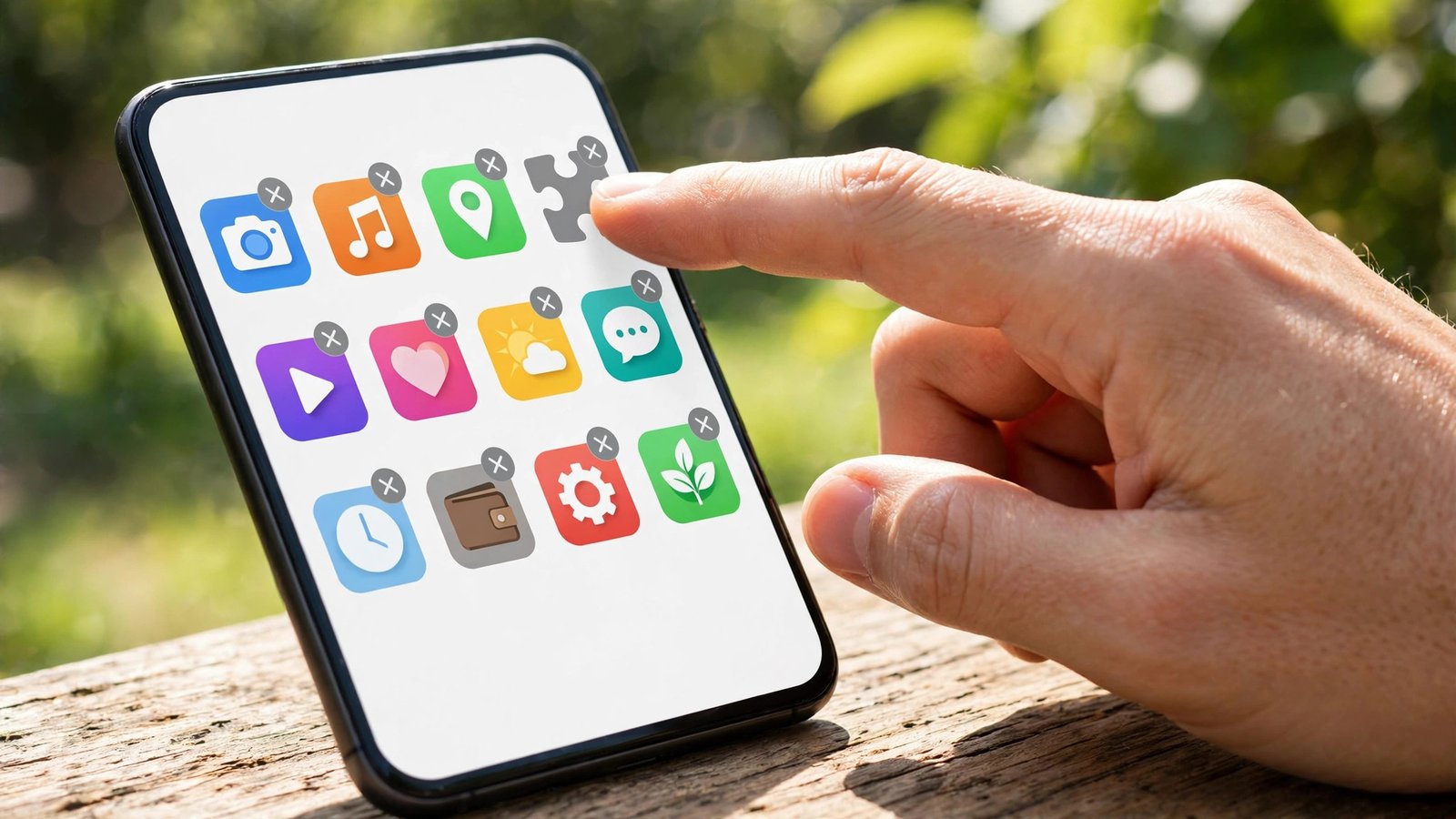
Start with the satisfying part: mass app deletion. Scroll through your full app list and delete anything you have not opened in three months. Be ruthless with duplicate apps, forgotten games, and that meditation app you used exactly twice. Most people remove twenty to thirty apps in this single step.
Do not worry about losing purchases, since app stores remember everything you bought and let you redownload free anytime. The goal is a phone containing only tools you actually use. Fewer apps means fewer updates, less background drain, and a home screen that finally makes sense.
2. Organize What Survives Into Folders
With the dead weight gone, group your remaining apps into logical folders instead of endless swiping. Create folders like Finance, Travel, Health, and Social, then drag related apps inside. Your home screen should show only your eight to twelve most-used apps, with everything else one tap away in folders.
This folder system cuts the time you spend hunting for apps dramatically. I also recommend putting distracting social apps inside a folder on the second screen rather than the home screen. That tiny bit of friction genuinely reduces mindless opening throughout the day.
3. Attack Your Photo Library
Photos consume more storage than everything else combined, and most libraries are full of duplicates, blurry shots, and accidental screenshots. Spend thirty minutes deleting obvious junk: burst photo extras, blurry shots, and screenshots you no longer need. Free apps can find exact duplicates automatically.
Then back up the keepers to Google Photos or iCloud so they are safe even if your phone dies. Once backed up, you can remove originals from the device to reclaim gigabytes. My photo cleanup alone freed eleven gigabytes, which felt like winning the storage lottery.
4. Silence Notification Chaos
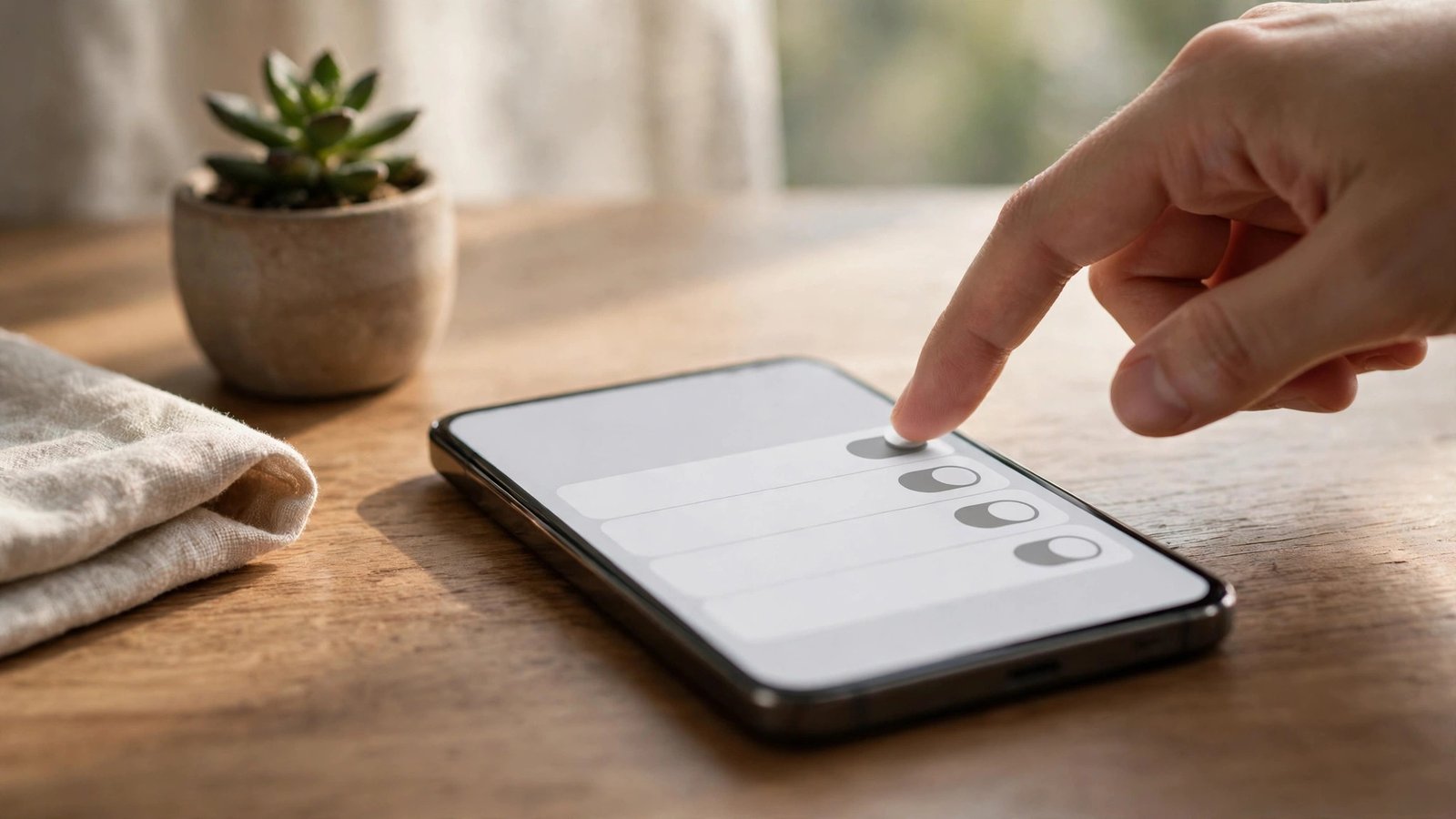
The average phone fires off dozens of notifications daily, and most of them are pure noise. Go to notification settings and turn off everything except messages from real humans and genuinely critical alerts. Shopping apps, games, and news apps do not need to interrupt your life.
Keep notifications for calls, texts, and maybe your calendar, then silence the rest without mercy. Your phone becomes dramatically calmer within hours. People consistently tell me this single step reduced their screen time more than any app limiter or digital detox ever did.
5. Clear Out Downloads and Cache
Your downloads folder is probably a graveyard of PDFs, memes, and files you opened once in 2022. Open your file manager, sort downloads by date, and delete everything you do not recognize or no longer need. Then clear cached data for your biggest apps, which can hoard gigabytes invisibly.
Streaming apps are the worst offenders, quietly storing downloaded episodes and offline playlists you forgot about. Check Spotify, Netflix, and YouTube for offline content you already watched. This cleanup routinely recovers three to five gigabytes with almost zero effort.
6. Audit Your Subscriptions
While decluttering your phone, check for subscription zombies draining your bank account monthly. Open your app store subscriptions page and review every active charge. That free trial from eight months ago might still be billing you $9.99 monthly for an app you deleted.
Cancel anything you have not actively used in the past month, keeping only services that earn their keep. The average person finds two or three forgotten subscriptions worth $20 to $30 monthly. That is $300 a year recovered in ten minutes of tapping, which beats any budgeting app.
7. Tame Your Messages and Email
Thousands of unread emails and ancient text threads create background anxiety every time you glance at those red badges. Archive or delete promotional emails in bulk using search filters, then unsubscribe from mailing lists as you go. For texts, delete old two-factor codes and delivery notifications.
You do not need inbox zero, just inbox sanity. Aim to clear promotional clutter and get unread counts under fifty. Turn off email badges entirely if the numbers stress you out, since important messages will still notify you individually. A calm inbox makes the whole phone feel lighter.
8. Update Everything at Once
Decluttering is the perfect moment to install all those postponed updates you have been ignoring. Update your operating system first, then update every app, since developers constantly fix bugs and security holes. Outdated software runs slower and leaves you vulnerable.
After updating, restart your phone completely, which clears temporary files and gives everything a fresh start. This fresh restart often fixes mysterious sluggishness that no amount of deleting could solve. Think of it as a deep breath for your device after all your hard organizing work.
9. Back Up, Then Delete Local Files
Old voice memos, downloaded documents, and offline maps pile up silently over years. Back up anything important to cloud storage, then delete the local copies to free space. Voice memos from 2021 and boarding passes from completed trips can go without ceremony.
Check your Files app for large forgotten items sorted by size, since a few huge files often hide among thousands of tiny ones. Move anything worth keeping to Google Drive or iCloud, verify the upload completed, then delete locally. Cloud storage costs pennies compared to the frustration of a full phone.
10. Redesign Your Home Screen Intentionally
Now that the junk is gone, design your home screen around your actual life instead of app defaults. Put your most-used tools on the first screen: phone, messages, camera, maps, and your top three daily apps. Everything else lives in folders or the app library.
Choose a calm wallpaper without busy details that hide your icons, and limit widgets to one or two genuinely useful ones like calendar or weather. A clean, intentional home screen reduces decision fatigue every time you unlock. Your phone should greet you like a tidy desk, not a teenager’s bedroom.
11. Set Up Do Not Disturb Schedules
A decluttered phone still buzzes at midnight unless you teach it boundaries. Configure Do Not Disturb to activate automatically during sleep hours, allowing only favorite contacts through for genuine emergencies. Add a work focus mode that silences social apps during your productive hours.
Most people set these schedules once and forget them, enjoying years of uninterrupted sleep and focused workdays. Customize the allowed apps ruthlessly: if an app does not need to wake you at 3 AM, it stays silenced. Your attention is your most valuable resource, so guard it like one.

12. Create a Monthly Maintenance Habit
Phones re-clutter constantly, so schedule a fifteen-minute monthly cleanup to protect your weekend of hard work. Set a recurring calendar reminder for the first Sunday of each month. Delete new unused apps, clear screenshots, and review notifications that crept back on.
This tiny habit prevents the slow slide back into chaos that ruins most organizing efforts. Pair it with something pleasant like your morning coffee to make it stick. Future you will open a clean, fast phone every day and barely remember the weekend overhaul that started it all.
FAQs
How long does it take to declutter your phone completely?
Most people finish in three to four hours spread across a weekend, with photo cleanup taking the longest. You can also split it into two sessions: apps and settings on Saturday, photos and files on Sunday. The monthly maintenance afterward takes only fifteen minutes to keep everything pristine.
Will deleting apps to declutter your phone lose my data?
App stores remember all your purchases permanently, so redownloading later is always free. However, some apps store data locally that deletion erases, like offline game progress or downloaded files. Back up anything important first, and check whether the app syncs to cloud before removing it.
Should I factory reset instead of manually decluttering?
A factory reset is faster but nuclear: you lose all settings, logins, and customizations, then spend hours rebuilding. Manual decluttering preserves your setup while removing only the junk. Reset only if your phone has serious performance problems that cleaning cannot fix, and back up everything first.
How do I declutter my phone without losing precious photos?
Back up your entire photo library to Google Photos or iCloud before deleting anything locally. Verify the backup completed by checking from another device or the web interface. Only then delete originals from your phone. This two-step process means your memories survive even if something goes wrong during cleanup.
What is the biggest storage hog on most phones?
Photos and videos typically consume the most space, followed by streaming app caches and old downloads. Social media apps also bloat over time with cached content. Checking storage settings sorted by size reveals your personal culprits instantly, so you can target the biggest wins first.
Conclusion
To declutter your phone successfully, work through these twelve steps one at a time without rushing, and enjoy watching your device transform. A clean phone saves time, reduces stress, and honestly just feels good to use. Ready to start this weekend?