Stop Your Phone Battery Draining So Fast: 12 Settings That Help
A phone battery draining fast by 2pm used to ruin my days, and I tried everything from sketchy “battery saver” apps to carrying a brick-sized power bank everywhere. Then I learned the truth: a handful of settings quietly eat most of your battery, and flipping them takes ten minutes. My phone now lasts until bedtime with 30% to spare. These 12 fixes work on both iPhone and Android.
1. Find the Real Culprit in Battery Settings
Before changing anything, check which apps actually drain your battery. Both iPhone and Android show per-app battery usage in settings, and the culprit is almost never what you expect. One rogue app can eat more than your screen does.
I discovered a shopping app I opened twice a month was running constantly in the background. Deleted it, gained two hours. Battery usage stats turn guessing into knowing, so always start here.
Look for apps with high background usage versus screen time. Anything burning battery while you weren’t using it is a prime suspect. Restrict its background activity or replace it with a less greedy alternative.
2. Turn Down Screen Brightness (The Biggest Drain)
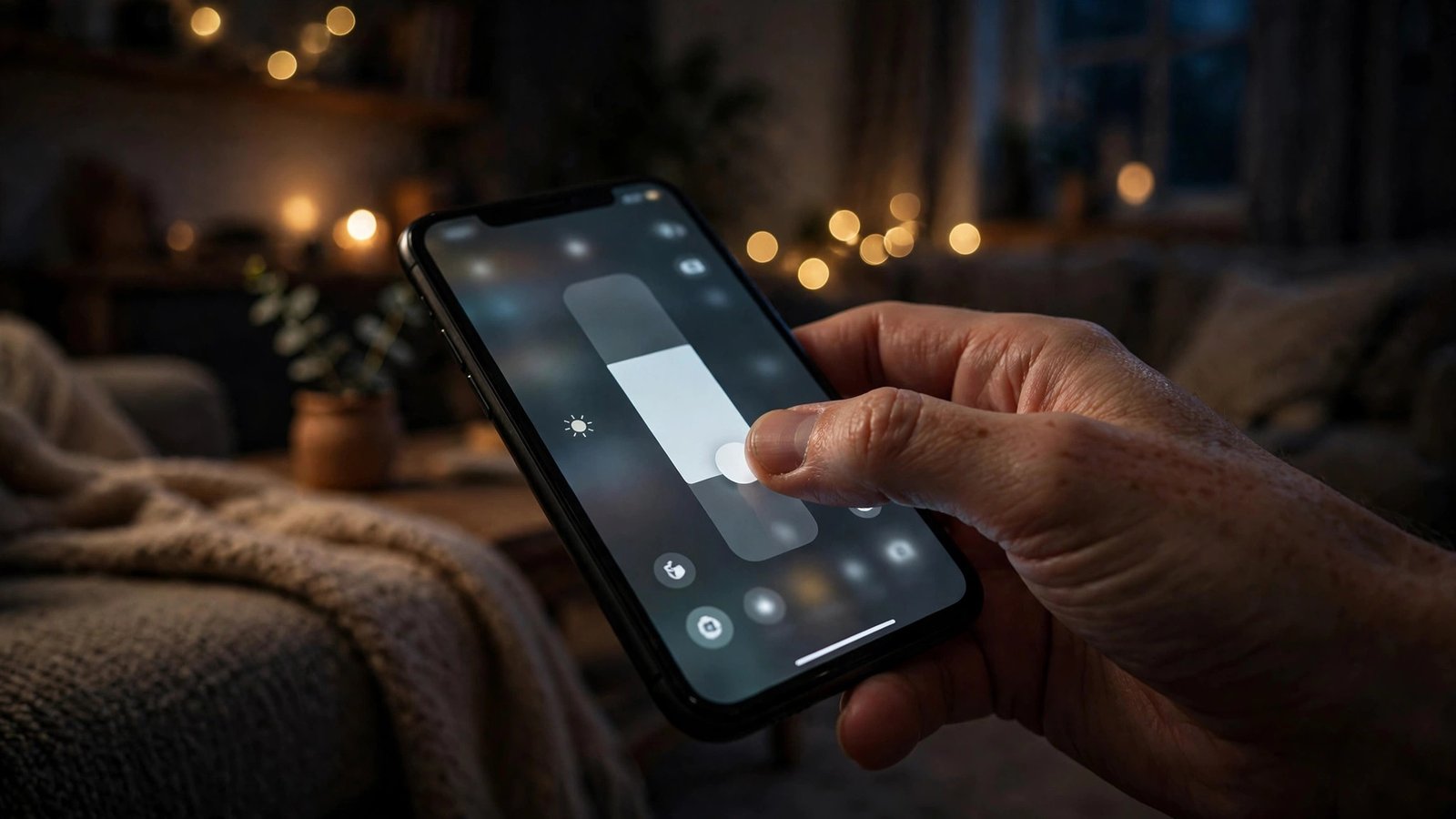
Your display is the hungriest component in your phone, often using more power than everything else combined. Dropping brightness from 100% to 70% is barely noticeable indoors but saves a massive amount of energy. Auto-brightness helps, but manual control saves more.
Your eyes adjust within minutes, I promise. I keep mine around 40% indoors and only crank it up in sunlight. Screen brightness is the fastest battery win available.
Shorten your screen timeout to 30 seconds too, since every minute of forgotten screen-on time adds up. These two changes alone can add an hour or more to your day. It’s the lowest-effort fix on this list.
3. Enable Dark Mode Everywhere
On OLED screens, which most modern phones have, black pixels are literally turned off and use zero power. Dark mode across your system and apps can cut display power dramatically, especially if you use your phone a lot at night.
It’s also easier on your eyes in the dark, so this one has no downside. I switched everything to dark mode two years ago and never looked back. Dark mode saves battery while looking cooler, a rare win-win.
Use dark wallpapers too, since your home screen shows constantly. Every black pixel is a pixel sipping no power. It sounds minor, but it compounds across thousands of screen wakes per day.
4. Stop Apps From Refreshing in the Background
Background app refresh lets apps update content when you’re not using them, which is convenient and constantly draining. Most apps don’t need it. Turn it off globally, then re-enable only for messaging and email.
Your apps still work perfectly when you open them, they just fetch fresh data on launch instead. I disabled it for 40 apps and noticed zero difference except better battery. Background refresh is convenience you won’t miss.
On iPhone, it’s under General settings. On Android, restrict background activity per app in battery settings. Social media apps are the worst offenders, since they refresh endlessly to keep you hooked.
5. Tame Location Services
GPS is a notorious battery hog, and dozens of apps request your location for no good reason. Set location to “While Using” instead of “Always” for everything except navigation and find-my-phone. Your weather app does not need to track you 24/7.
That fitness app you opened once in January is still pinging satellites. Audit the list and be ruthless. Location permissions are the sneakiest background drain most people ignore.
Turn off precise location for apps that only need your general area. Weather and news apps work fine with approximate location. Each permission you tighten is battery you’ll never miss.
6. Turn Off 5G When You Don’t Need It
5G is faster but thirstier than 4G, especially when the signal is weak and your phone strains to hold it. If you’re just scrolling social media or messaging, 4G is plenty and sips power. Most phones let you prefer LTE in network settings.
I only enable 5G when downloading large files or hotspotting. The speed difference for everyday use is invisible. 5G vs LTE is a battery tradeoff most people never think to make.
Weak signal of any kind drains battery fast, since the radio boosts power to compensate. In dead zones, airplane mode with WiFi on saves enormous energy. Your phone fighting for signal is like revving an engine in neutral.
7. Disable Unnecessary Notifications
Every notification wakes your screen, buzzes the motor, and lights up the display. Multiply by 100 daily pings and it’s a real drain. Turn off notifications for everything except messages, calls, and things you genuinely need instantly.
Your phone becomes calmer too, which is a mental health bonus. I cut mine to 12 apps and my screen-on time dropped noticeably. Notification discipline saves battery and sanity simultaneously.
Shopping apps, games, and news apps are the worst notification spammers. They want your attention, not your battery life. Be aggressive, you can always check apps manually when you actually care.
8. Use Battery Saver Mode Strategically
Built-in battery saver modes throttle background activity and visual effects to stretch remaining charge. Turn it on at 30% instead of waiting for the 10% panic. Modern saver modes barely affect usability for basic tasks.
Some phones let you schedule it or trigger it by routine. I have mine kick in automatically every evening. Battery saver isn’t admitting defeat, it’s smart energy budgeting.
Extreme saver modes on Pixels and Galaxies can stretch 10% into hours of standby. Learn where yours lives before you need it desperately. It’s the parachute you pack before the flight.
9. Update Your Apps and OS
Battery-draining bugs get fixed in updates constantly, but only if you install them. Developers optimize power usage over time, so running a year-old app version means running a year of unfixed drain. Turn on auto-updates and stop postponing OS upgrades.
Major OS updates often include battery improvements specifically. I gained noticeable life from an update that optimized background processing. Software updates are free battery improvements you’re already paying for.
Delete apps you never use instead of updating them forever. Every installed app is a potential background drain, even ones you forgot exist. A lean phone is an efficient phone.
10. Manage Your Widgets and Live Wallpapers
Widgets that update constantly, like stocks, sports scores, and news feeds, sip battery all day. Keep one or two essentials and ditch the rest. Live wallpapers are pretty and pointless, draining power for decoration.
Your home screen should be boring and efficient. I removed five widgets and switched to a static dark wallpaper. Widget minimalism sounds extreme until you see the battery graph improve.
Weather widgets are the classic offender, updating location and data every 15 minutes. Check weather manually when you need it. Your lock screen doesn’t need to be a dashboard.
11. Turn Off Bluetooth and WiFi Scanning When Out
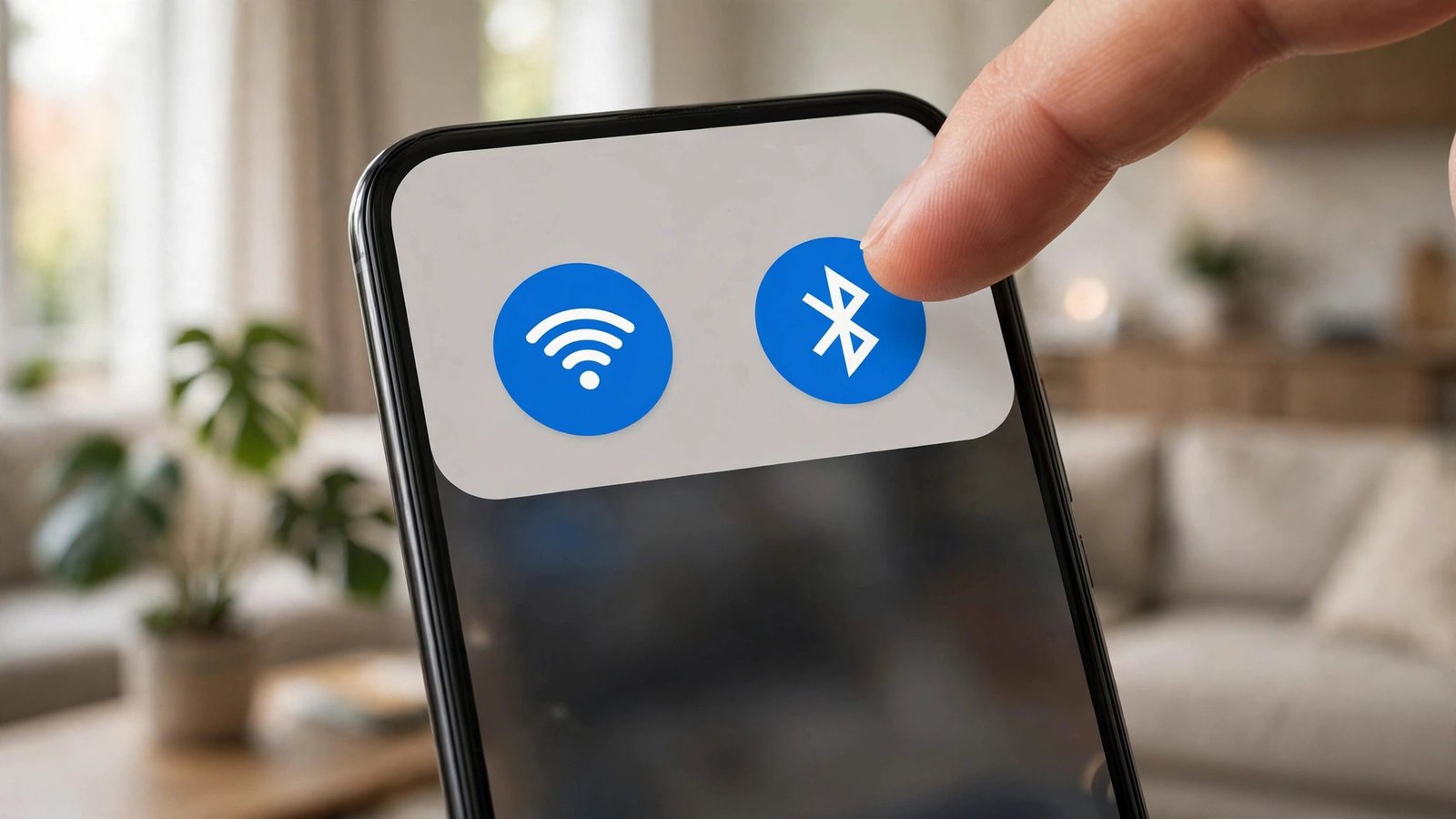
Leaving Bluetooth on all day for headphones you use an hour is wasteful. WiFi scanning constantly hunts for networks even when WiFi is “off” in some phones. Toggle them as needed instead of leaving them on 24/7.
This isn’t 2012, toggling is instant from quick settings. I turn Bluetooth on only when my earbuds are in. Radio management is a small habit with a real payoff.
NFC can stay on, since it uses negligible power until you tap something. Airplane mode in dead zones, as mentioned, is the nuclear option. Think of radios like lights: off when you’re not using them.
12. Check Battery Health and Know When It’s Hardware
Sometimes a phone battery draining fast isn’t settings, it’s a worn-out battery. Check battery health in settings: below 80% capacity on iPhone means it’s time for a replacement. Android apps like AccuBattery estimate health too.
A $70 battery replacement beats a $800 new phone. My old phone felt brand new after a battery swap. Battery health is the diagnosis people skip while blaming software.
Batteries degrade faster with heat and constant 100% charging. Enable optimized charging to cap at 80% overnight. Treat your battery well and it’ll return the favor for years.
FAQs
Why is my phone battery draining fast all of a sudden?
Sudden drain usually means a recent app update introduced a bug, or a new app is misbehaving in the background. Check battery usage stats to identify the culprit. Restarting your phone fixes temporary glitches. If it started after an OS update, give it a few days to settle, since updates reindex everything initially.
Does closing apps save battery on a phone battery draining fast?
Counterintuitively, no. Force-closing apps and reopening them uses more power than letting them sit suspended in memory. Both iOS and Android freeze background apps efficiently. Only force-close apps that are actively misbehaving. Constantly swiping apps away is a battery myth that won’t die.
Should I let my phone battery draining fast hit 0% before charging?
No, that’s outdated advice from the nickel battery era. Modern lithium batteries prefer partial charges and hate deep discharges. Charge whenever convenient, and enable optimized charging to avoid sitting at 100% overnight. Keeping your battery between 20% and 80% maximizes its lifespan.
Do battery saver apps actually help a phone battery draining fast?
Most are useless or worse, since they run constantly themselves while claiming to save power. Your phone’s built-in battery saver is far more effective because it’s integrated with the OS. Delete third-party “optimizer” apps, they’re the digital equivalent of snake oil. Stick to the settings in this article instead.
How long should a healthy phone battery last in a day?
A healthy modern phone should comfortably last a full day of moderate use, roughly 5 to 7 hours of screen-on time. If you’re charging twice daily with normal usage, something is wrong, either settings or battery health. After applying these fixes, most people gain 2 to 3 hours of extra life.
Conclusion
A phone battery draining fast is almost always fixable with settings, not new hardware. Start with brightness and background apps, then work down the list. How many hours did you gain?