Fix Slow Home WiFi: 12 Easy Solutions That Actually Work
When you need to fix slow home WiFi, the frustration hits hardest right in the middle of a video call or movie night. Everything freezes, voices turn robotic, and you start wondering if your internet provider is throttling you. Before you call them or buy a fancy new router, know this: most WiFi problems come from small, fixable mistakes. These twelve solutions actually work, and most take under ten minutes.
1. Move Your Router to a Central Spot
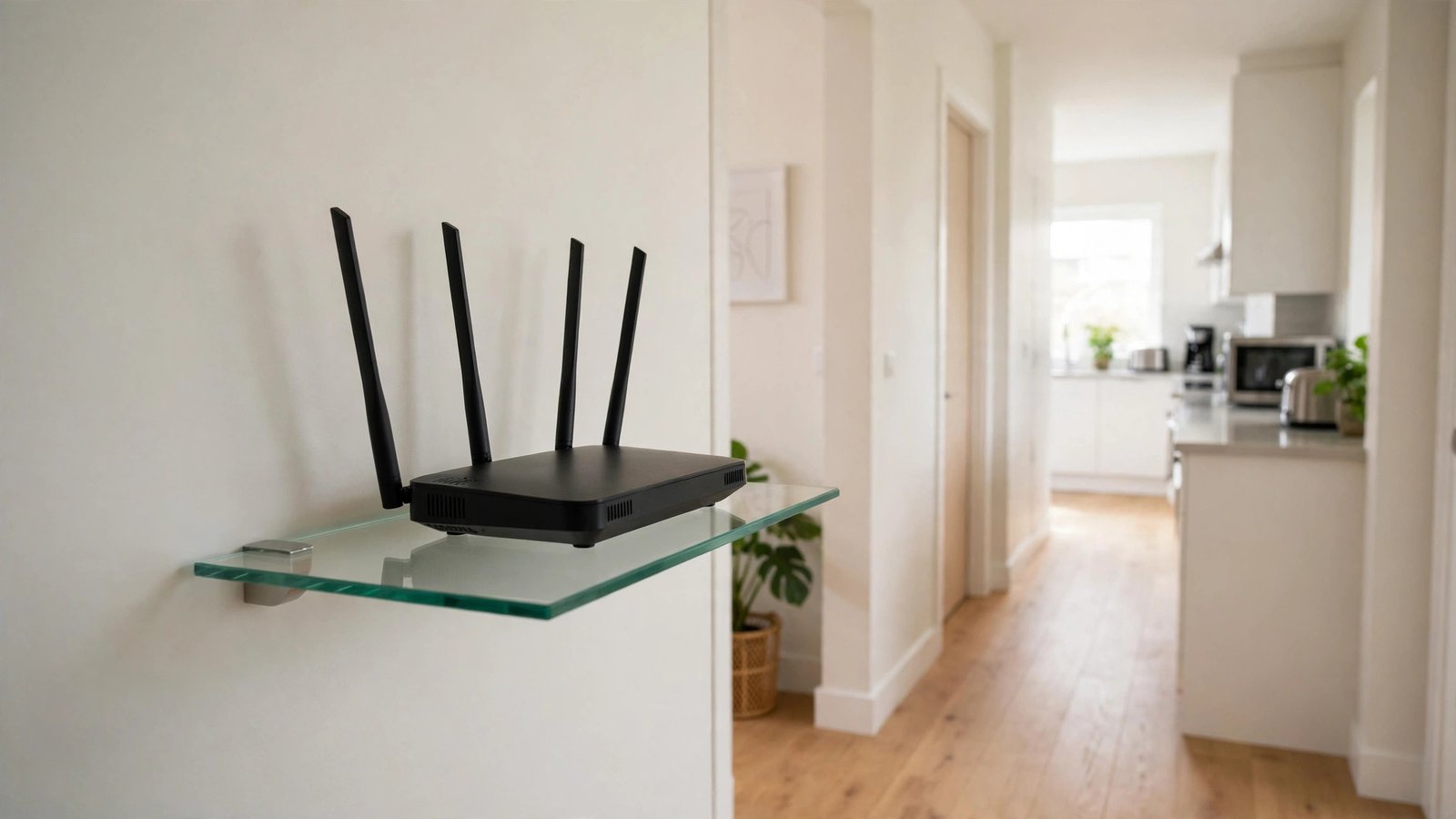
Most people shove the router in a corner near where the cable enters the house, which is the worst possible location. WiFi signals spread outward in all directions, so a corner placement wastes half the signal on your yard or the neighbor’s wall. Drag it to the most central room you can, even if the cable run looks ugly for a day.
The difference can be dramatic. I moved mine from a back bedroom to a hallway shelf and my download speeds doubled in the living room. Central placement means fewer walls between the router and your devices, and walls are the number one speed killer in most homes.
2. Get the Router Off the Floor
A router sitting on the floor is broadcasting a big chunk of its signal straight into your carpet and floorboards. WiFi antennas send signals outward and slightly downward, so floor placement wastes coverage where nobody uses devices. Put it on a shelf, a bookcase, or the top of a cabinet instead.
Aim for chest height or higher in the room where you use the internet most. This one change costs nothing and takes thirty seconds. People overlook it because it sounds too simple, but signal strength drops fast when the router sits behind furniture at ankle level.

3. Restart Your Router the Right Way
Unplugging your router for ten seconds and plugging it back in fixes more problems than any other single trick. Routers are tiny computers, and like any computer they get sluggish when they run for weeks without a break. Memory leaks pile up, connections get stale, and speeds sag.
Here is the part most people skip: unplug both the router and the modem, wait a full sixty seconds, then plug in the modem first. Wait for its lights to stabilize before plugging in the router. This power cycle forces a fresh connection to your provider and clears the cobwebs properly.
4. Switch to the 5GHz Band
Most modern routers broadcast two networks, a 2.4GHz one and a 5GHz one, and your devices may be camping on the slower band without you knowing. The 2.4GHz band travels farther but tops out at much lower speeds and gets crowded by neighbors, baby monitors, and microwaves. The 5GHz band is faster and far less congested.
Check your WiFi list for two versions of your network name, often with “5G” tacked on one. Connect your laptop, TV, and phone to the 5GHz version when you are in the same room as the router. Save the 2.4GHz band for smart home gadgets and devices far from the router.
5. Update Your Router’s Firmware
Router manufacturers push out firmware updates that fix bugs, patch security holes, and sometimes genuinely improve speed. Almost nobody installs them because the option hides in the router’s admin page that nobody visits. An outdated router can run years behind on performance fixes.
Type your router’s IP address (usually 192.168.1.1 or 192.168.0.1) into a browser, log in with the credentials on the router’s sticker, and look for a firmware or update section. Some newer routers from brands like TP-Link and ASUS update automatically, so check whether yours already does before assuming the worst.

6. Change Your WiFi Channel
In apartment buildings and dense neighborhoods, a dozen routers may all be shouting on the same WiFi channel, and they drown each other out. Your router probably picked its channel automatically years ago and never reconsidered. Manually switching to a less crowded channel can clear up interference overnight.
On the 2.4GHz band, channels 1, 6, and 11 are the only ones that do not overlap, so pick whichever looks emptiest. Free apps like WiFi Analyzer show you a graph of nearby networks and their channels. This five-minute channel switch is the fix apartment dwellers thank me for most.
7. Kick Bandwidth Hogs Off the Network
One device can quietly eat your entire connection while you blame the WiFi. Cloud backups, game downloads, 4K streams, and video uploads in the background devour bandwidth without any visible warning. A single PlayStation downloading a 100GB update will make every other device crawl.
Log into your router’s admin page and look at the connected devices list to spot the culprit. Pause cloud backups and game downloads during work hours, and set streaming apps to auto rather than maximum quality. Managing bandwidth hogs beats buying faster internet you do not actually need.
8. Move the Router Away from Interference
Microwaves, baby monitors, Bluetooth speakers, and even some LED bulbs operate on frequencies that clash with WiFi, especially the 2.4GHz band. A router parked next to the microwave will drop connections every time someone heats up lunch. Metal filing cabinets and mirrors also bounce signals in unhelpful directions.
Give your router at least a few feet of clearance from other electronics, and keep it out of enclosed metal cabinets. Kitchens are the worst room for routers thanks to the microwave and appliances. A little physical distance from interference sources often stabilizes a flaky connection completely.
9. Count How Many Devices Are Connected
The average home now has over twenty connected devices, and every one of them chats with the router constantly, even when idle. Smart TVs, thermostats, doorbells, watches, and old phones you forgot about all sip bandwidth and router attention. An aging router can simply get overwhelmed.
Check the device list in your router settings and disconnect anything you no longer use. That old tablet in a drawer and the smart plug you unplugged months ago may still be clinging to the network. Trimming idle devices frees up the router’s limited processing power for the gadgets that matter.
10. Plug In for the Important Stuff
WiFi is convenient, but a wired Ethernet connection is faster, more stable, and immune to interference every single time. If your desk sits near the router, running one Ethernet cable to your computer or TV eliminates WiFi variables entirely. Gamers and remote workers swear by this for a reason.
Ethernet cables cost a few dollars and most routers have spare ports on the back. Even a long cable tucked along a baseboard beats the fastest WiFi for video calls and gaming. When you need to fix slow home WiFi for one critical device, a wired connection is the closest thing to a guaranteed win.
11. Add a Mesh Node or Extender
If parts of your house are just too far from the router, no settings tweak will push the signal through that much drywall and distance. Dead zones in bedrooms or upstairs offices need hardware help. A mesh WiFi node or a decent extender placed halfway between the router and the dead zone bridges the gap.
Mesh systems like Google Nest Wifi or TP-Link Deco create one seamless network, which beats old-school extenders that cut your speed in half. Place the node where the signal is still decent, not inside the dead zone itself. One well-placed mesh node often covers a whole floor that used to be a WiFi desert.
12. Call Your ISP When You Cannot Fix Slow Home WiFi Alone
If nothing above helps, the problem may be the line coming into your house, not your WiFi at all. Before calling, run speed tests at speedtest.net with a wired connection at different times of day for a few days. Screenshots of slow results turn a vague complaint into evidence.
Ask the support rep to check your line quality and signal levels, not just reset your modem for the tenth time. Mention the specific times speeds drop, which points to congestion or a failing line. Walking in with speed test data gets you past the script and to a real technician much faster.
FAQs
Why is my WiFi slow even though I pay for fast internet?
The speed you pay for is what reaches your modem, not what your devices actually get over WiFi. Walls, distance, interference, outdated router hardware, and too many connected devices all eat into that speed before it reaches your phone. Test with a wired connection first. If wired speeds look fine, your WiFi setup is the bottleneck, not your plan.
Does a VPN slow down my home WiFi?
A VPN can reduce speeds by 10 to 30 percent because your traffic takes an encrypted detour through a remote server. If your connection feels sluggish only when the VPN is on, try switching to a closer server location or a faster protocol like WireGuard. Some premium VPNs barely dent speeds, while free ones often crawl.
How often should I restart my router to fix slow home WiFi?
A monthly restart keeps most routers running smoothly, and weekly restarts help older models that get flaky. If you find yourself rebooting daily just to stay online, that is a sign the router is dying or overloaded, and no restart schedule will save it. At that point, replacement beats ritual.
Will buying a new router fix my slow WiFi?
Sometimes, but only if the router is actually the problem. A five-year-old router struggling with twenty devices will benefit from an upgrade. But if your router sits in a basement corner surrounded by interference, a shiny new one in the same spot will disappoint you the same way. Fix placement and settings first, then upgrade.
What is a good WiFi speed for a family of four?
For typical use with streaming, video calls, and browsing across several devices, 100 to 200 Mbps down is plenty. A household with multiple 4K streams, gamers, and remote workers might want 300 to 500 Mbps. Beyond that, most families will not notice a difference, because WiFi bottlenecks matter more than plan speed.
Conclusion
Most slow WiFi is a placement or settings problem, not a hardware or provider problem, which is good news because those fixes are free. Work through the list above before spending money, and test your speeds after each change so you know what actually helped. What is the one trick that finally helped you fix slow home WiFi?