Everyday Online Privacy for Beginners: 12 Simple Habits That Work
Online privacy for beginners sounds like a rabbit hole of VPN ads and tinfoil hats, but I used to think the same thing until a data breach exposed my email, password, and home address in one cheerful notification. That wake-up call taught me that privacy isn’t about hiding, it’s about not handing strangers the keys to your life. These 12 habits take minutes and actually work.
1. Use a Password Manager and Stop Memorizing Passwords
Your brain is a terrible password manager, and reusing one password everywhere is how breaches cascade. A password manager like Bitwarden (free) generates and stores unique passwords for every site, so one leak doesn’t compromise everything. You only remember one master password.
Enable two-factor authentication on the manager itself for maximum safety. I switched three years ago and haven’t typed a real password since. A password manager is the single highest-impact privacy habit on this list.
Most managers also warn you when a saved password appears in a known breach, which is like having a security guard for every account. Bitwarden’s free tier covers everything an individual needs, so there’s no excuse not to start today.
2. Turn On Two-Factor Authentication Everywhere
Passwords leak constantly, but a second factor stops attackers cold. Use an authenticator app like Google Authenticator or Authy rather than SMS codes, which can be intercepted through SIM swapping. It takes 30 seconds per account and blocks the most common attacks.
Start with your email, bank, and social media, since those unlock everything else. Save backup codes somewhere safe in case you lose your phone. Two-factor authentication turns a stolen password into a useless string of characters.
3. Review App Permissions Ruthlessly
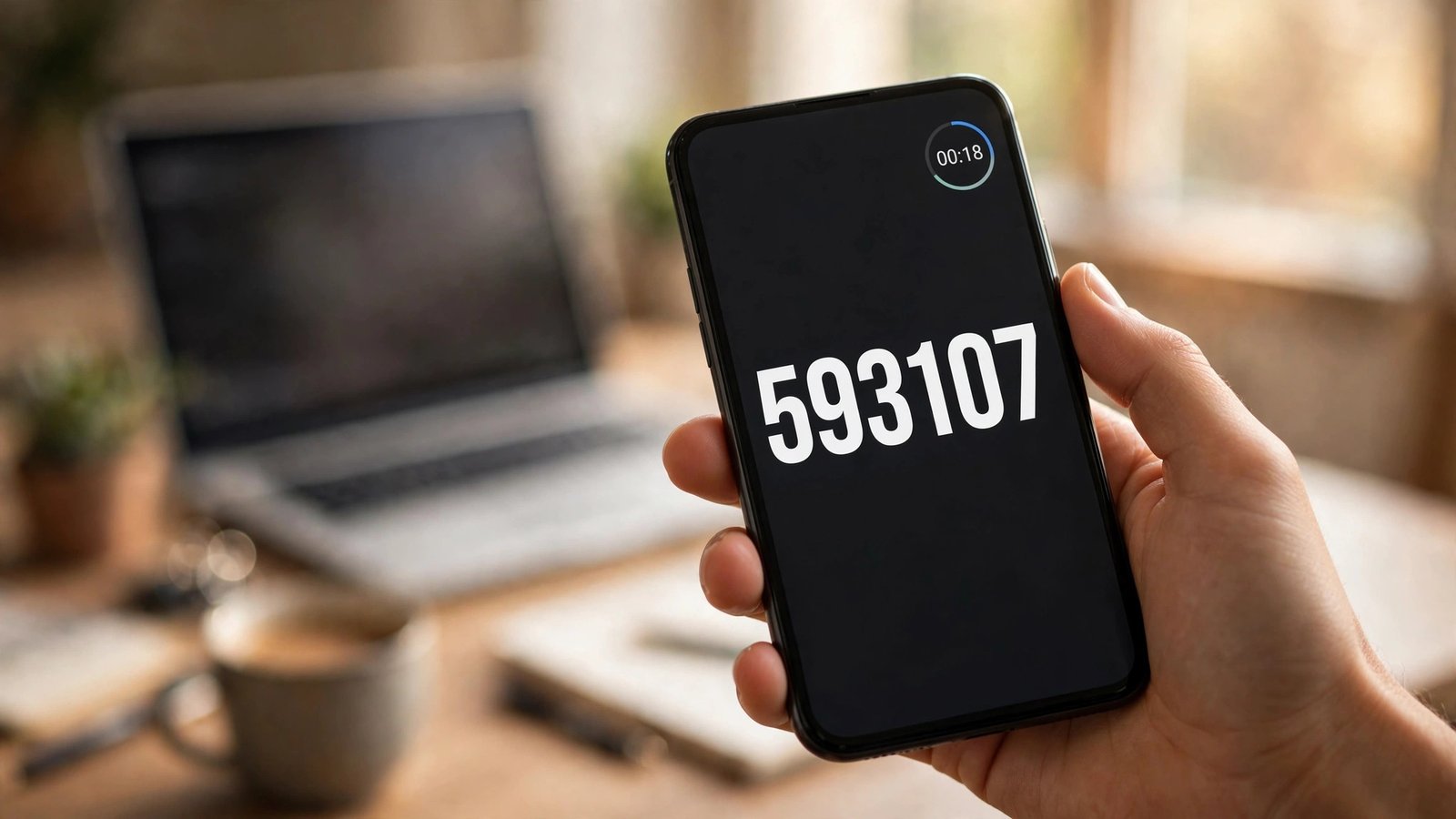
That flashlight app does not need your contacts and location history. Go through your phone’s permission settings and revoke anything that doesn’t make sense. Apps quietly harvest far more data than they need, and most people never check.
On both iPhone and Android, you can grant location “only while using the app” instead of always. I audited mine and found a weather app tracking me 24/7. App permissions are a privacy leak most people never bother to plug.
4. Switch to a Privacy-Focused Browser
Your browser sees everything you do online, so it matters who makes it. Firefox with uBlock Origin, or Brave out of the box, blocks trackers that follow you across the web. Chrome is convenient, but you’re the product being sold.
You don’t have to quit Chrome cold turkey. Start by using a private browser for sensitive stuff like banking and health searches. I switched fully in a weekend and noticed pages loading faster without all the trackers. A private browser is a quiet rebellion that pays off daily.
5. Use a Separate Email for Signups
Every newsletter signup and free trial is a future spam source and a breach waiting to happen. Create a free “burner” email for signups, shopping, and anything non-essential. Your real inbox stays clean and your identity stays compartmentalized.
Services like SimpleLogin or Apple’s Hide My Email generate unique addresses per site. When one gets breached, you know exactly who leaked it. Email aliases turn data breaches into someone else’s problem.
6. Lock Down Your Social Media Privacy Settings
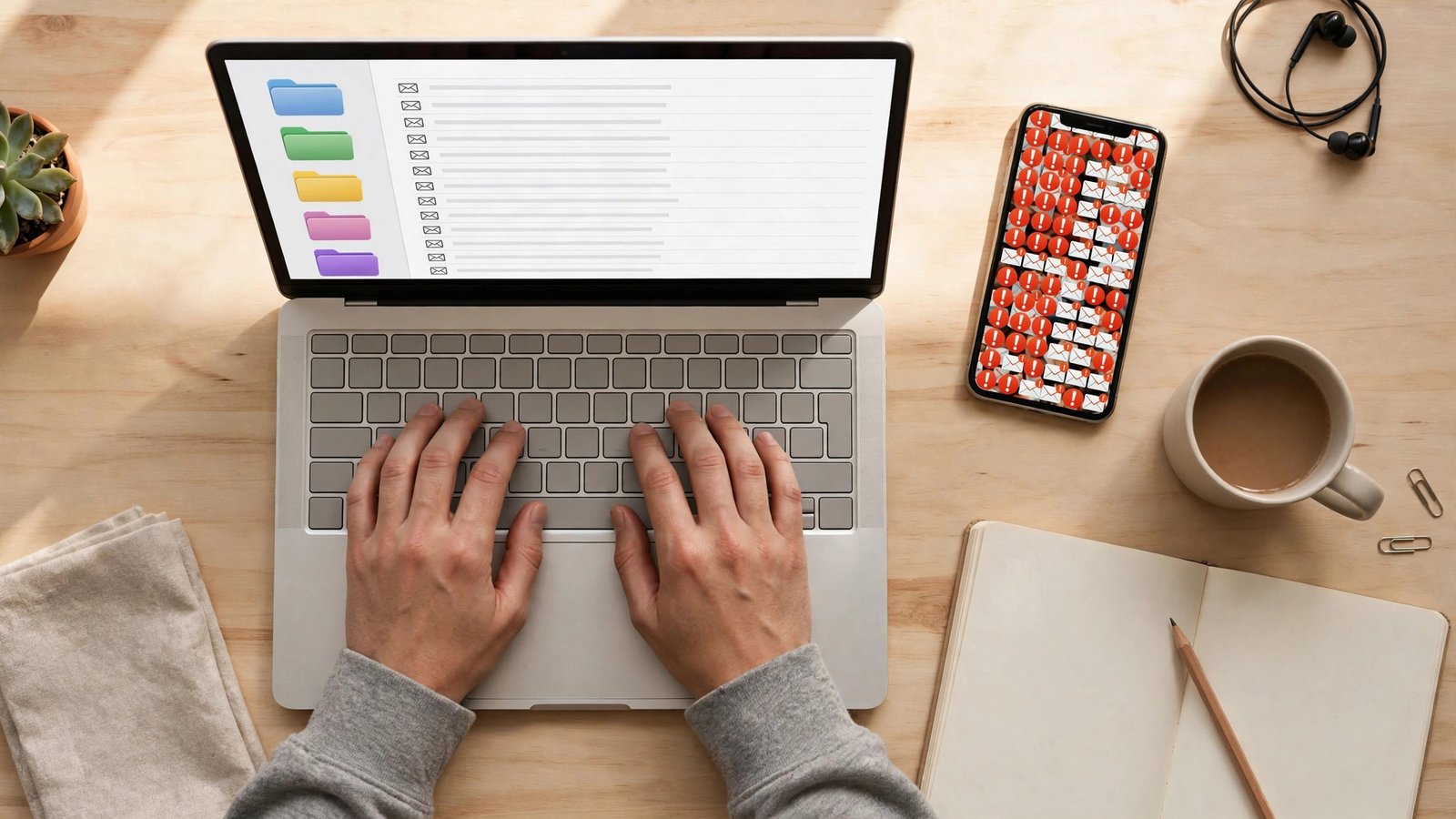
Your vacation photos tell burglars you’re not home, and your birthday plus hometown answers half your security questions. Set profiles to friends-only, remove your birth year, and never post travel plans in real time. Oversharing is a privacy choice you’re making daily.
Google yourself once a year to see what’s public. I found my old address on a people-search site and got it removed in ten minutes. Social media settings deserve a 20-minute audit twice a year.
7. Cover Your Webcam (Yes, Really)
Webcam malware is rare but real, and a $5 sliding cover eliminates the risk entirely. Tape works too, though it looks less classy on video calls. This isn’t paranoia, it’s the same reason you lock your front door.
Mark Zuckerberg and the FBI director both cover theirs, which tells you something. It takes two seconds and removes an entire category of worry. A webcam cover is the cheapest peace of mind you’ll ever buy.
8. Stop Using Public WiFi Without Protection
Coffee shop WiFi is convenient and completely unencrypted, meaning anyone nearby can snoop your traffic. A reputable VPN encrypts everything, or at minimum, stick to sites with HTTPS and avoid banking on open networks. Your data is worth more than free WiFi.
Your phone’s hotspot is safer than any public network when you need real security. I use a VPN that costs less than one coffee per month. Public WiFi is fine for browsing, dangerous for anything sensitive.
9. Delete Old Accounts You Don’t Use
Every forgotten account is a breach waiting to notify you. That forum you joined in 2015 still has your email and probably your password from back then. Spend an afternoon closing accounts you don’t use, starting with ones tied to your main email.
Have I Been Pwned shows which breaches already exposed you. I deleted 40 old accounts in one weekend and felt strangely liberated. Fewer dormant accounts means fewer targets on your back.
10. Turn Off Ad Personalization
Google, Apple, and Facebook all let you disable personalized ads, which cuts the data they collect for targeting. It won’t reduce the number of ads, but it stops them from building a creepy psychological profile. The setting is buried, which tells you how much they want you to keep it on.
On iPhone, turn off “Allow Apps to Request to Track.” On Android, delete your advertising ID. These take two minutes and meaningfully reduce ad tracking across your devices.
11. Encrypt Your Phone and Computer
If your laptop gets stolen, encryption decides whether the thief gets your files or a brick. Modern phones encrypt by default when you set a passcode. On computers, turn on BitLocker (Windows) or FileVault (Mac), both free and built in.
Use a strong device passcode, not 1234 or your birthday. Six digits minimum, alphanumeric if you’re serious. Full-disk encryption is a silent guardian you set up once and forget.
12. Think Before You Share (The Free Habit)
The best privacy tool costs nothing: a three-second pause before posting, signing up, or granting access. Ask “does this app really need my location?” and “would I be okay if this photo went public?” Most privacy failures are impulse decisions, not technical ones.
Teach this pause to your family too, since grandma’s quiz app can expose the whole family tree. Mindful sharing habits beat every tool on this list because they prevent the leak instead of cleaning it up.
That viral “post your first car” trend is a security question harvest in disguise. Fun quizzes asking for your mother’s maiden name or childhood street are practically gift-wrapped answers to bank verification questions. When something online asks for personal trivia, assume the worst about why.
FAQs
Is online privacy for beginners really worth the effort?
Yes, because the effort is tiny and the stakes are real. Identity theft, stalking, and targeted scams all start with data you gave away casually. These habits take minutes to set up and protect you for years. You don’t need to be a tech expert, you just need to care slightly more than the average person.
Do I need a VPN for everyday online privacy?
A VPN helps on public WiFi and hides browsing from your internet provider, but it’s not magic. For everyday online privacy for beginners, password managers and two-factor authentication matter far more. Get a VPN if you travel or use open networks often, but don’t let VPN ads convince you it’s the only thing that matters.
What’s the biggest online privacy mistake beginners make?
Reusing passwords across sites, by a mile. One breach exposes every account sharing that password, and attackers automate these credential-stuffing attacks at scale. A password manager fixes this completely. The second biggest mistake is ignoring app permissions that harvest location and contacts silently.
Can I be private and still use social media?
Yes, with boundaries. Lock profiles to friends, strip personal details like birth year and hometown, and never post locations in real time. Accept that anything you post could become public, and share accordingly. Privacy on social media means controlling your audience, not achieving invisibility.
How do I check if my data was already breached?
Visit Have I Been Pwned and enter your email addresses. It shows every known breach involving your accounts and what data leaked. If you find breaches, change those passwords immediately and enable two-factor authentication. Then work through this list to prevent the next one.
Conclusion
Online privacy for beginners isn’t about perfection, it’s about being a harder target than the next person. Pick three habits from this list and do them today. Which one surprised you most?