Home Office Tech Upgrades on a Budget: 12 Smart Picks
The best home office tech upgrades are not the flashy ones, they are the boring fixes that end your daily aches and frustrations. I spent two years working hunched over a laptop at my kitchen table before wising up. These twelve budget picks transformed my setup for less than one month of coworking rent, and my back, eyes, and productivity all noticed.
1. A 24-Inch IPS Monitor: Home Office Tech Upgrades Start Here
Working on a 13-inch laptop screen all day is like reading through a keyhole, and a basic 24-inch IPS monitor fixes it for around a hundred dollars. The extra screen real estate means your spreadsheet and video call fit side by side without tab-switching madness. IPS panels give you accurate colors and wide viewing angles.
The productivity research backs this up: studies consistently show dual or larger screens cut task-switching time dramatically. I bought a refurbished Dell monitor for eighty bucks, and it was the single biggest upgrade to my workday. Your neck will thank you for getting the screen up to eye level.
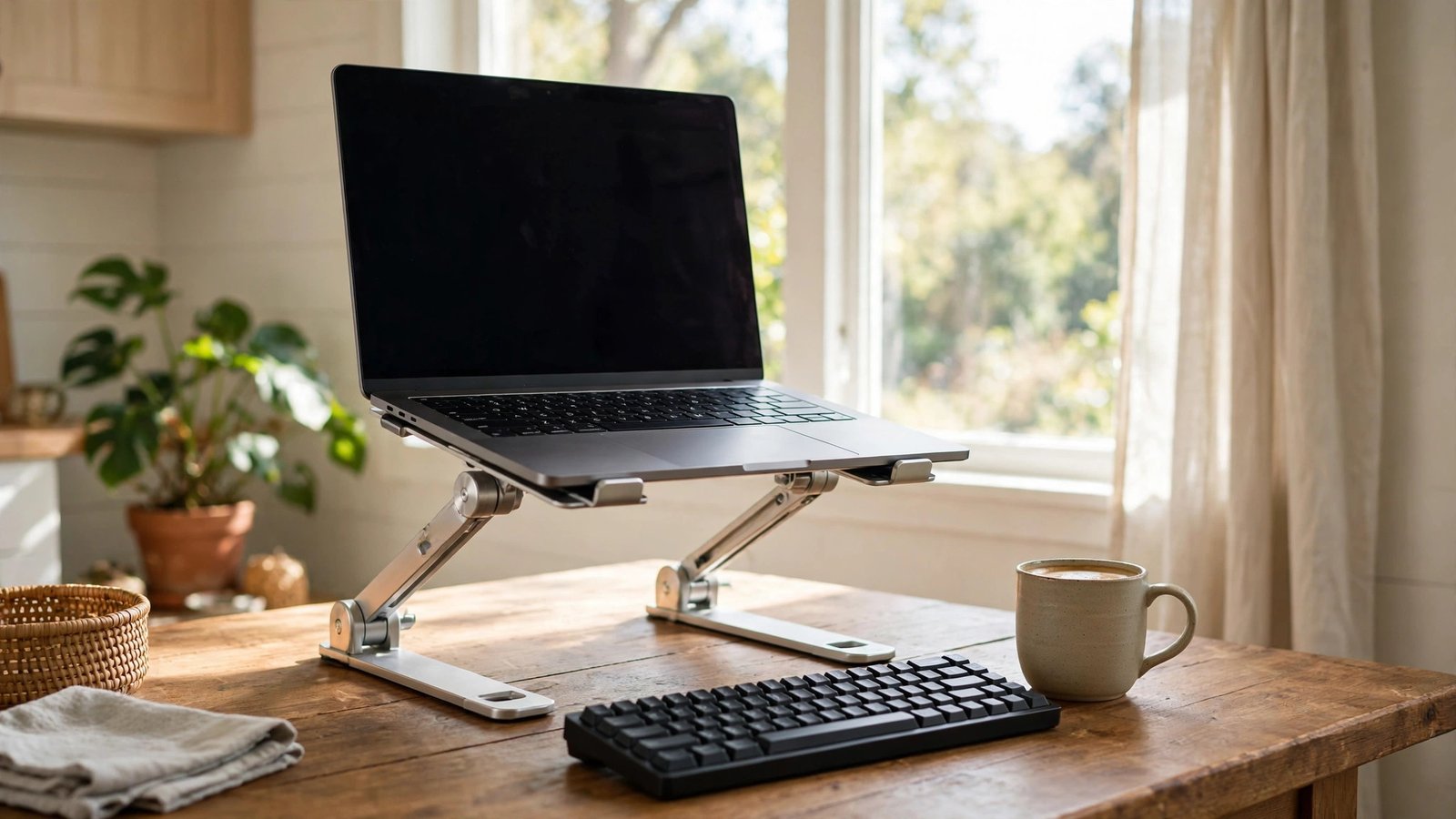
2. A Simple Laptop Stand
If you are not ready for a monitor, a twenty-dollar laptop stand is the next best thing for your posture. It raises your screen to eye level, which stops the slow hunch that causes neck pain by 3 PM. Most fold flat, so they work for kitchen-table setups you pack away daily.
Pair it with a cheap external keyboard and you have ergonomic positioning that rivals expensive desks. I used just a stand and keyboard for a year before buying a monitor. The difference in my evening neck stiffness was noticeable within the first week, which sold me completely.
3. A Budget Mechanical Keyboard
Typing all day on a mushy laptop keyboard is miserable, and budget mechanical keyboards start around forty dollars. The tactile feedback makes typing faster and more satisfying, and your fingers fatigue less over long sessions. Brands like Royal Kludge and Redragon punch way above their price.
The hot-swappable switches on many budget boards let you change the feel without soldering, so you can experiment cheaply. I was skeptical until I tried one, and now I cannot go back to membrane keyboards. Your coworkers on calls will hear the clacking though, so maybe stick to quieter switches.
4. An Ergonomic Wireless Mouse
Wrist pain creeps up silently until one day your hand aches constantly, and an ergonomic mouse prevents that for thirty dollars or less. Vertical mice keep your wrist in a natural handshake position instead of twisted flat. The Logitech Lift and cheaper Anker alternatives both work well.
What surprised me was the precision improvement: a good sensor on a proper mouse pad made design work and spreadsheets noticeably easier. I resisted switching for months because my old mouse “worked fine,” then wondered why I waited. If your wrist ever tingles after long days, do not wait like I did.
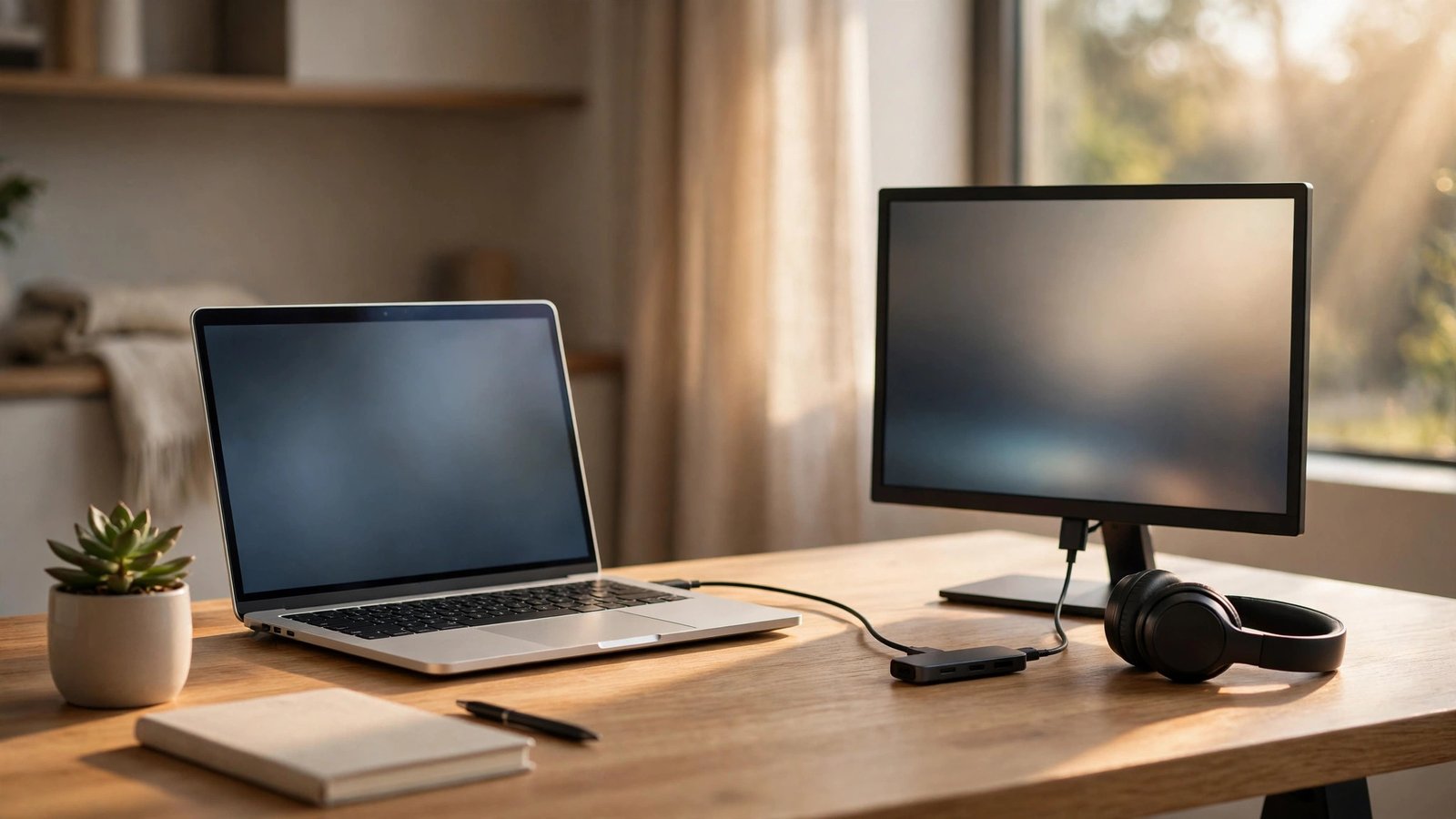
5. A USB-C Hub for One-Cable Docking
Plugging in power, monitor, keyboard, and headphones every morning gets old fast, and a USB-C hub turns it into one cable. A decent hub with HDMI, USB-A ports, and power delivery runs thirty to fifty dollars. You sit down, plug in once, and everything connects.
The power delivery passthrough means the hub charges your laptop while connecting everything else, so you never juggle chargers. I keep mine velcroed under my desk edge for a clean look. It also future-proofs your setup: one hub works with whatever laptop you upgrade to next.
6. An Adjustable Desk Lamp
Overhead lighting creates screen glare and eye strain, while a good desk lamp with adjustable warmth fixes your whole lighting situation. Look for one with adjustable color temperature so you can use cool white for focus and warm light for evening wind-down. Decent options cost twenty to thirty dollars.
Proper bias lighting behind your monitor reduces eye fatigue during long sessions, a trick borrowed from home theater setups. I added a cheap LED strip behind my monitor and my end-of-day headaches dropped noticeably. Good lighting also makes you look dramatically better on video calls.
7. Noise-Canceling Headphones
Kids, neighbors, traffic, and leaf blowers do not care about your meeting schedule, and noise-canceling headphones create instant silence. You do not need flagship models: refurbished Sony or Bose pairs, or budget options like Soundcore, deliver 80 percent of the experience for half the price.
The focus benefit extends beyond calls: wearing them signals “do not disturb” to everyone in the house, which is almost as valuable as the silence. I do deep work every morning with mine on and no music playing. For apartment dwellers, these are not a luxury, they are survival gear.
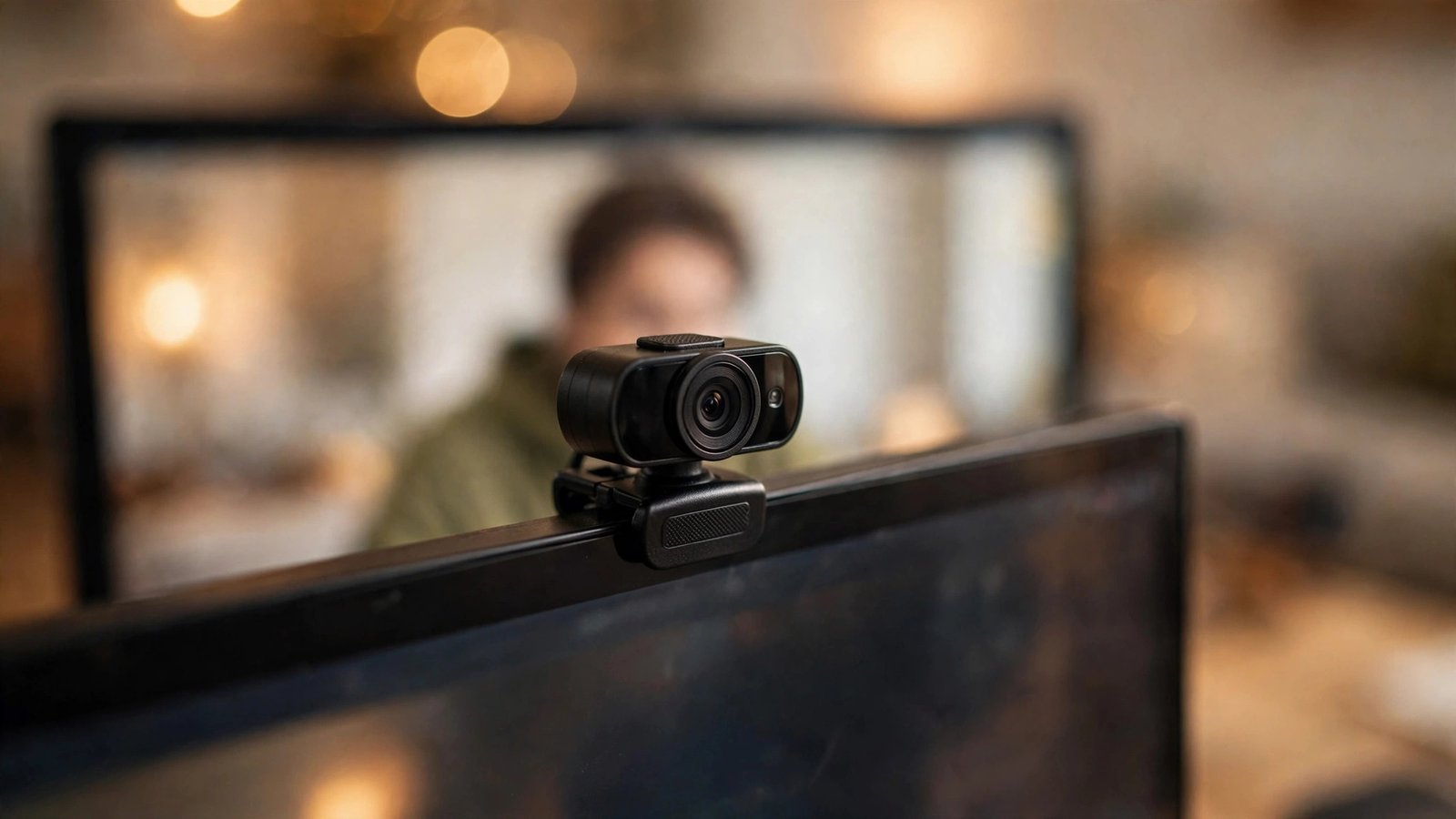
8. A Dedicated 1080p Webcam
Laptop webcams make you look like a blurry ghost, and a fifty-dollar 1080p webcam makes you look like a professional. The Logitech C920 has been the default recommendation for years because it just works with everything. Better low-light performance means you do not need studio lighting.
Sharp video quality subtly changes how colleagues perceive you: clear video reads as competent and prepared, while pixelated video reads as not caring. I upgraded before a big presentation and got compliments on my “new setup” when only the camera changed. It clips onto your monitor in seconds.
9. A USB Microphone for Clear Audio
People forgive bad video but never forgive bad audio, and a USB mic like the Samson Q2U costs sixty dollars and sounds broadcast-quality. It is both USB and XLR, so it grows with you if you ever get serious about audio. Your voice comes through rich and clear instead of tinny and distant.
The room noise rejection on dynamic mics like this one ignores keyboard clatter and air conditioners that condenser mics pick up. I switched from my headset mic and immediately got asked what changed. For anyone who talks for a living, this upgrade pays for itself in the first week.
10. A Cable Management Kit
Cable spaghetti under your desk is ugly and stressful in a way you do not notice until it is gone. A fifteen-dollar kit with a cable tray, Velcro ties, and adhesive clips tames the mess in an afternoon. Route everything through one tray and suddenly your workspace feels calm.
The psychological effect is real: a tidy desk genuinely reduces mental clutter and makes starting work easier each morning. I put it off for a year thinking it was cosmetic, then felt oddly peaceful the first Monday with clean cables. It is the cheapest mood upgrade on this list.
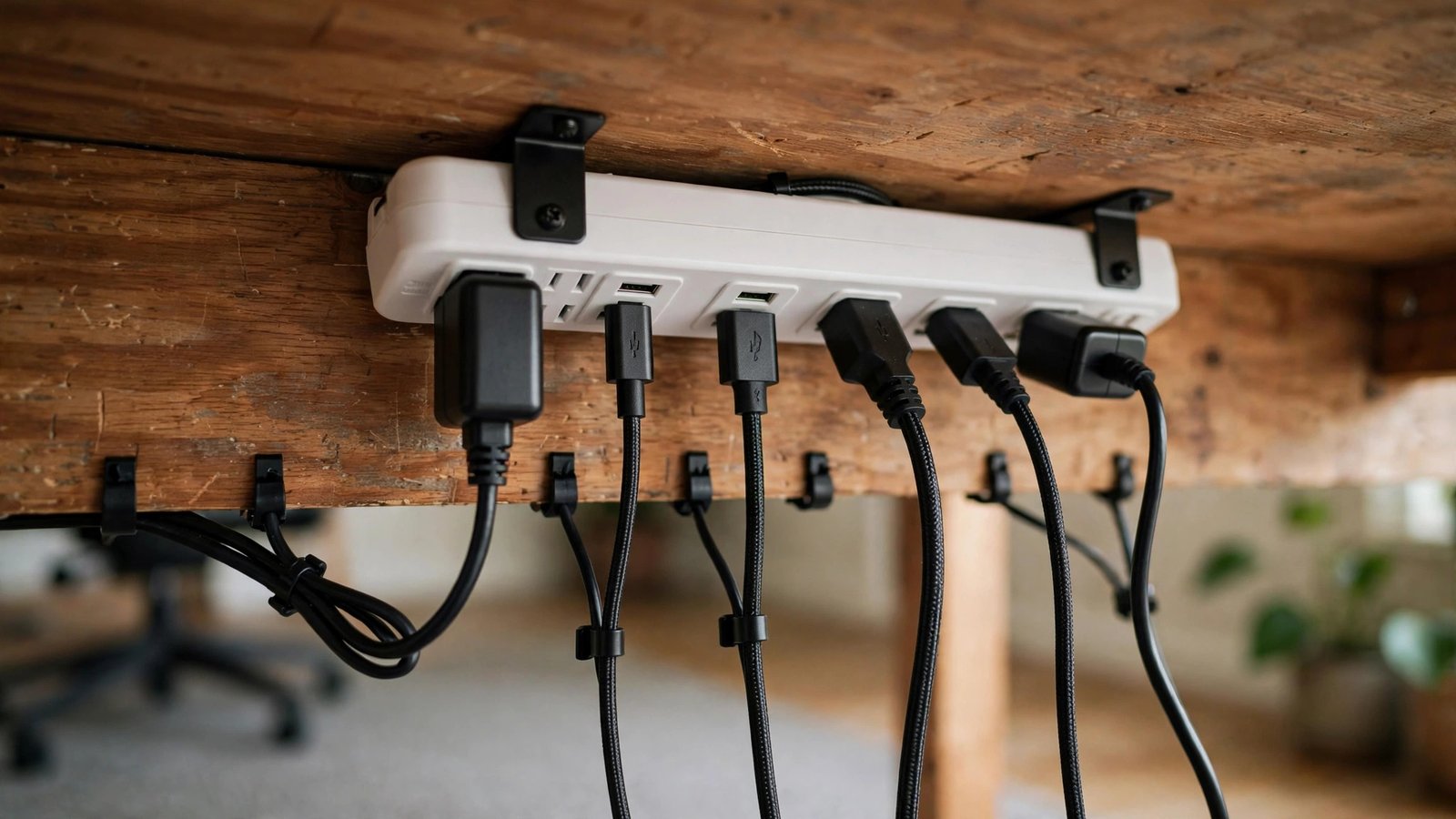
11. A Surge Protector with USB Ports
One power surge can fry every gadget on this list, and a quality surge protector with USB charging costs twenty-five dollars. Look for at least 1000 joules of protection and an auto-shutoff feature that sacrifices itself to save your gear. The built-in USB ports free up your wall outlets.
The equipment warranty on good surge protectors covers connected devices up to tens of thousands of dollars if protection fails. I learned this the hard way after a storm killed a monitor years ago. It is the most boring item here and the one you will be most grateful for during the next thunderstorm.
12. A Memory Foam Seat Cushion
A full ergonomic chair costs hundreds, but a thirty-dollar memory foam cushion fixes the worst part of a cheap chair. It distributes your weight evenly, reducing the tailbone pressure that makes afternoons unbearable. The U-shaped cutout design specifically relieves lower back strain.
Combined with the lumbar roll many cushions include, this two-piece setup approximates a much pricier chair. I used this combo for eighteen months before investing in a real office chair. If your back hurts by Thursday every week, start here before spending big on furniture.
FAQs
What home office tech upgrades should I buy first on a tight budget?
Start with whatever causes you daily pain: a laptop stand and external keyboard for neck strain, a cushion for back pain, or noise-canceling headphones for a loud house. Those three cost under a hundred dollars combined and fix the biggest miseries. Add the monitor next when budget allows, since screen space boosts productivity more than any other single upgrade.
How much should I budget for a decent home office setup?
You can build a genuinely comfortable setup for 300 to 500 dollars using the picks in this article: monitor, stand, keyboard, mouse, hub, lamp, and cushion. The microphone and webcam add another hundred if you are on video calls daily. That is less than two months of coworking space, and the gear lasts for years.
Are refurbished monitors and accessories reliable for home office tech upgrades?
Yes, especially from manufacturer refurb programs like Dell Outlet or Apple Refurbished, which include warranties. Monitors, keyboards, and headphones are safe refurb bets because they have no moving parts that wear unpredictably. I bought my monitor refurbished three years ago and it still works perfectly. Avoid refurbished surge protectors though, since their protection components degrade with use.
How do I make my home office look professional on video calls?
The webcam and lighting upgrades on this list do most of the work: a 1080p camera plus a desk lamp aimed at your face beats any virtual background. Position the lamp behind your monitor facing you, and sit facing a window when possible. A tidy background matters more than a fancy one, so the cable management kit pulls double duty here.
Can these home office tech upgrades work in a small apartment?
Absolutely, since nearly everything here is compact or foldable. The laptop stand folds flat, the keyboard and mouse fit in a drawer, and the cushion lives on whatever chair you already own. I worked from a studio apartment for two years with this exact approach, packing my setup into a closet each evening. Small space just means choosing foldable over fixed.
Conclusion
A comfortable home office does not require a big budget, just smart picks that fix real problems instead of adding gadget clutter. Start with the two or three upgrades matching your biggest daily annoyance, then build from there. What is the first thing you would change about your current setup?